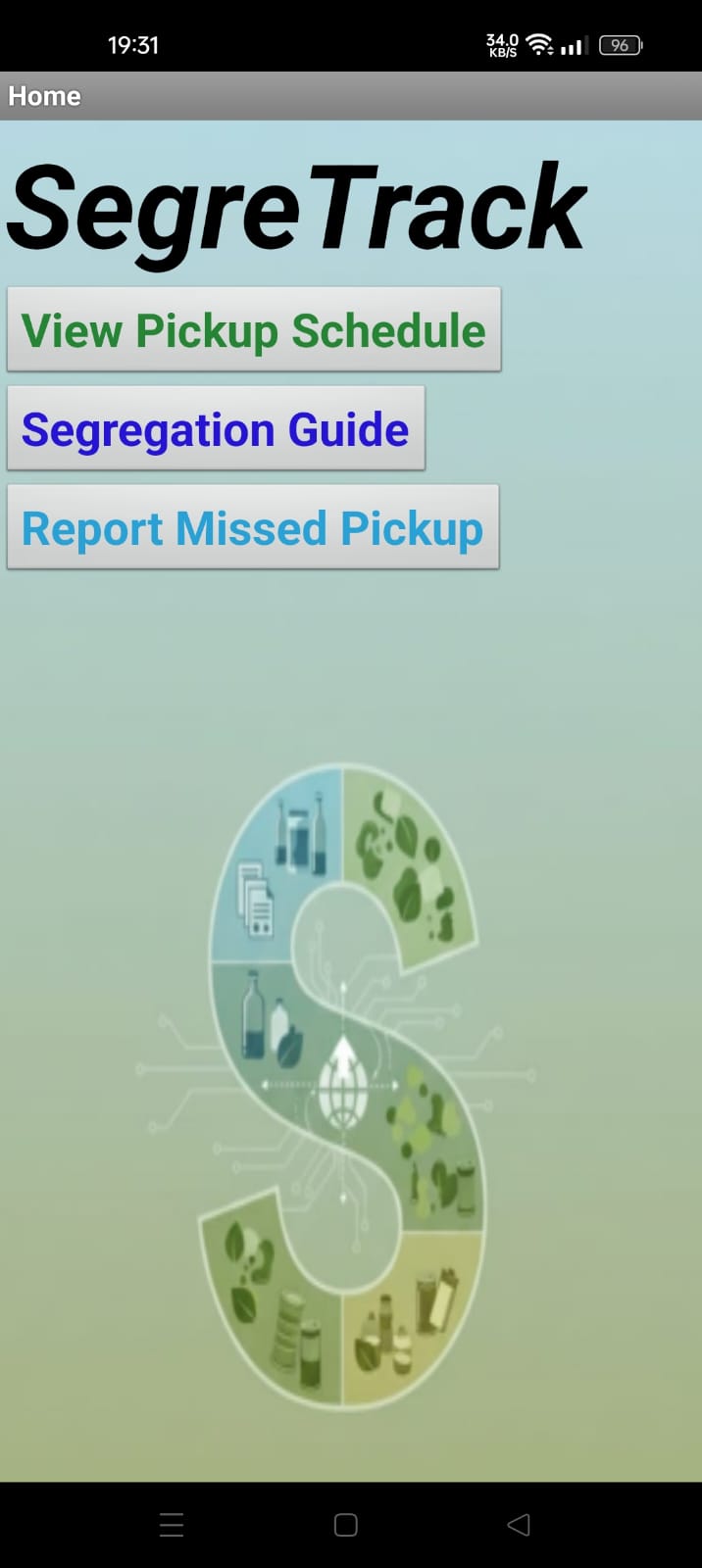
Welcome to SegreTrack
SegreTrack helps villagers track pickup schedules, learn segregation rules and report missed waste pickups quickly. Use the navigation above or the buttons below to jump to any section.
How to use Home (app / site):
- Open the app / website to see main options.
- Tap "View Pickup Schedule" to know collection days.
- Tap "Report Missed Pickup" to submit a complaint — you will receive a confirmation email.
Pickup Schedule
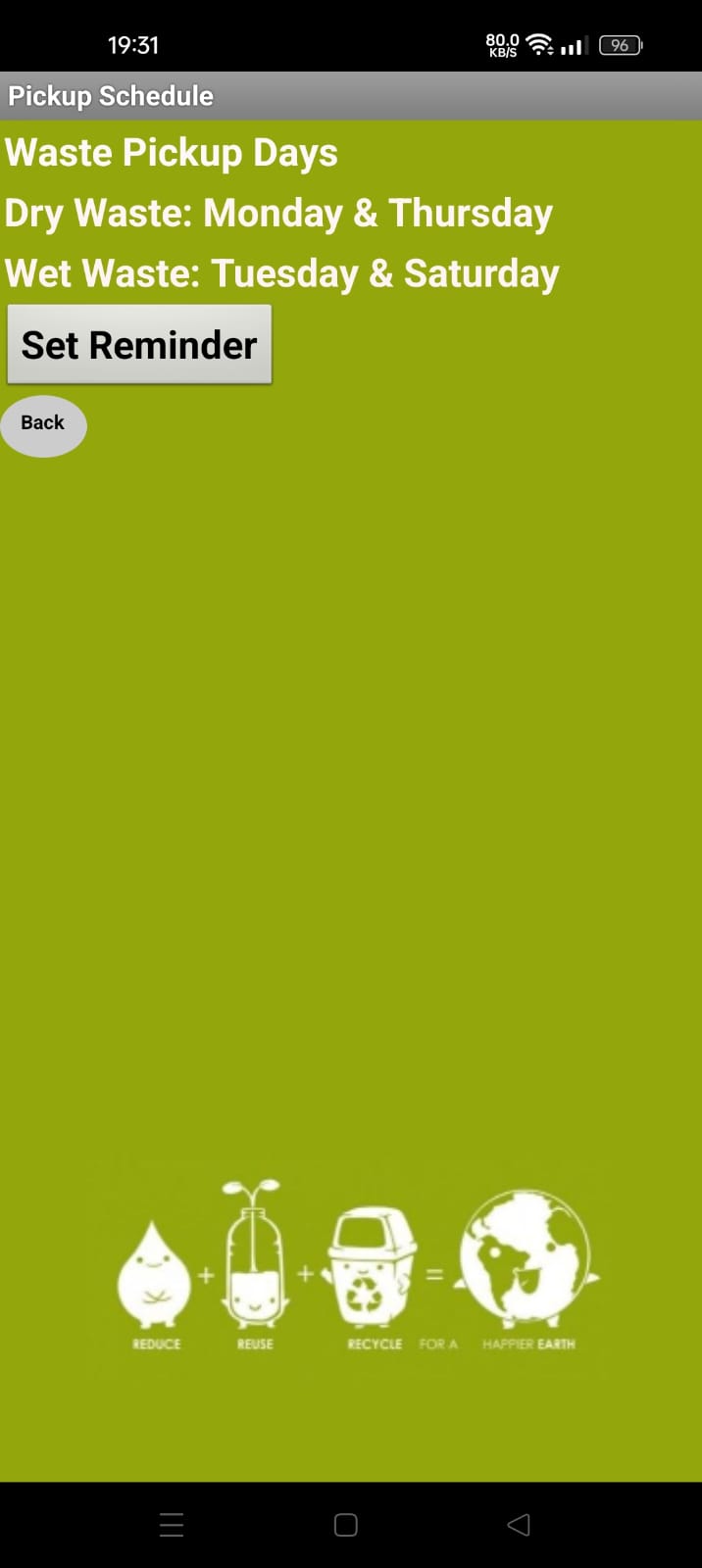
Waste Pickup Days
Dry Waste: Monday & Thursday
Wet Waste: Tuesday & Saturday
How to use (Pickup Schedule page):
- Open this page any time to check which days are scheduled for which waste.
- Set phone's calendar reminder (or app reminder) for pickup day to avoid missed collection.
- If pickup is missed, proceed to Report Missed Pickup.
Pickup — Practical Tips
Small tips to make pickup smoother for village residents and workers:
- Put dry and wet waste in separate, labelled bags/bins.
- Leave bins at the same pickup spot by 7:00 AM on the scheduled day.
- If you see a missed pickup, file a report with location and a short description.
Segregation Guide
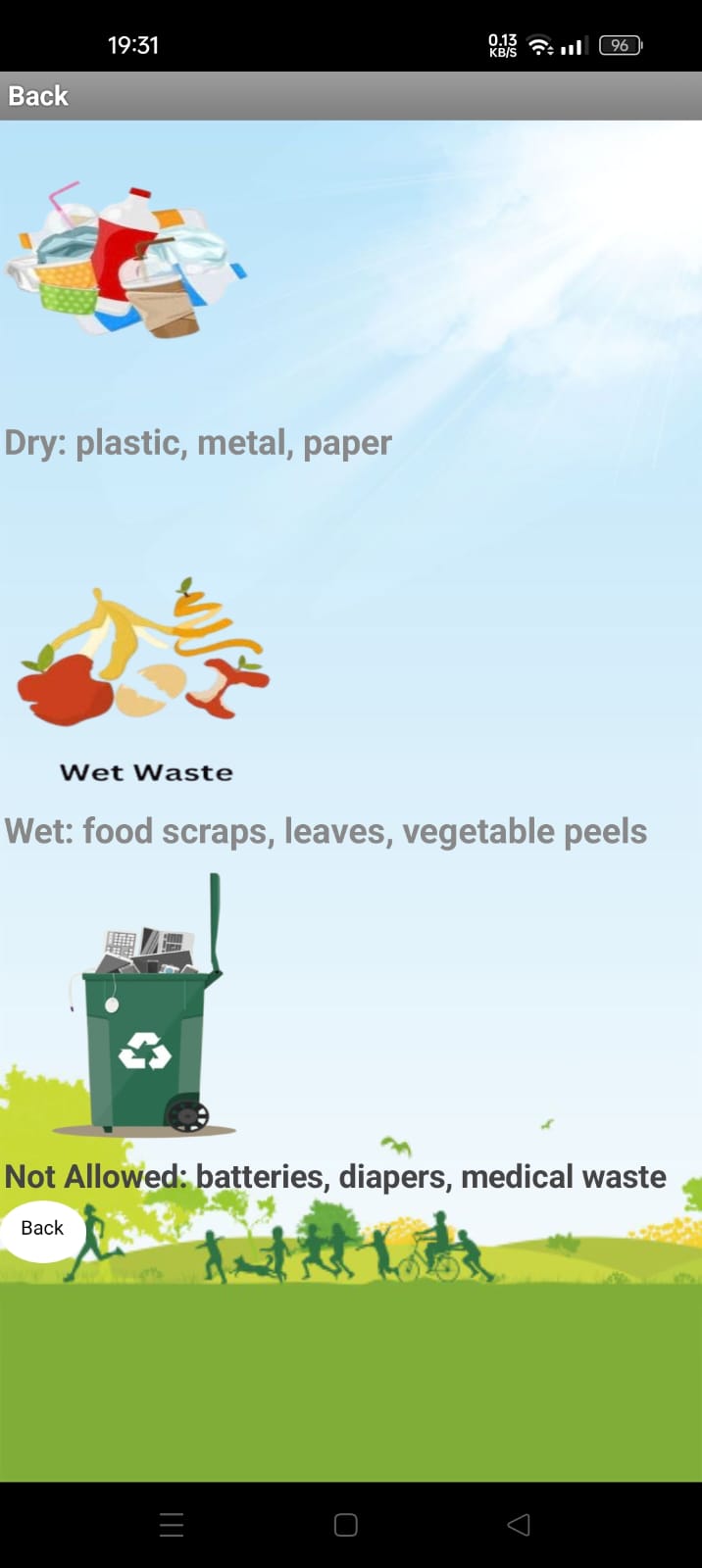
Segregation at a glance
- Dry / Recyclable: Plastic bottles, metal tins, paper, cardboard.
- Wet / Compostable: Vegetable peels, fruit, food scraps, leaves.
- Not allowed in pickup: Batteries, diapers, medical waste — these require special disposal.
How to use (Segregation page):
- Use two bins at home — one for dry recyclables, one for wet compostables.
- Empty wet waste into a compost pit if available, or bag for pickup on wet days.
- Keep hazardous waste separate and follow local guidance for disposal.
Report Missed Pickup
If your pickup was missed, file a report — admin will be notified and you'll get a confirmation email.
How to use (Report page):
- Fill Name & Location so the admin knows where the problem is.
- Enter a valid email to receive confirmation.
- Describe the issue briefly (pickup date/time, missing area).
- Press Submit — wait for the confirmation message on screen and in email.
Admin Email Notification
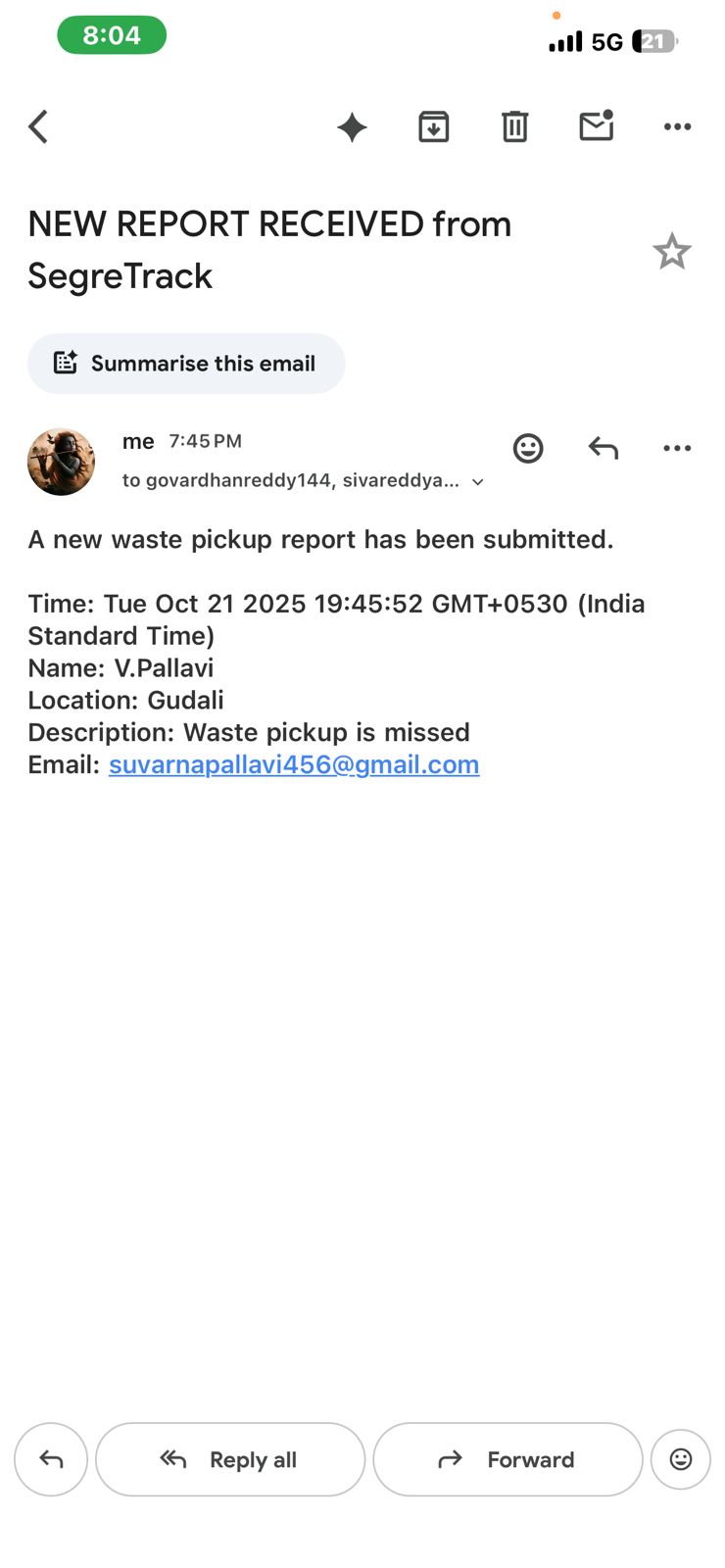
When a report is submitted, admins receive an email with all details (time, name, location, description, user email).
How this works (Admin email):
- The backend (Google Apps Script) appends the report to Google Sheets.
- It sends an email to admins (addresses configured in the backend) and optionally CCs the user.
- Admins can then take action (dispatch pickup team, follow up via phone/email).
User Confirmation Email
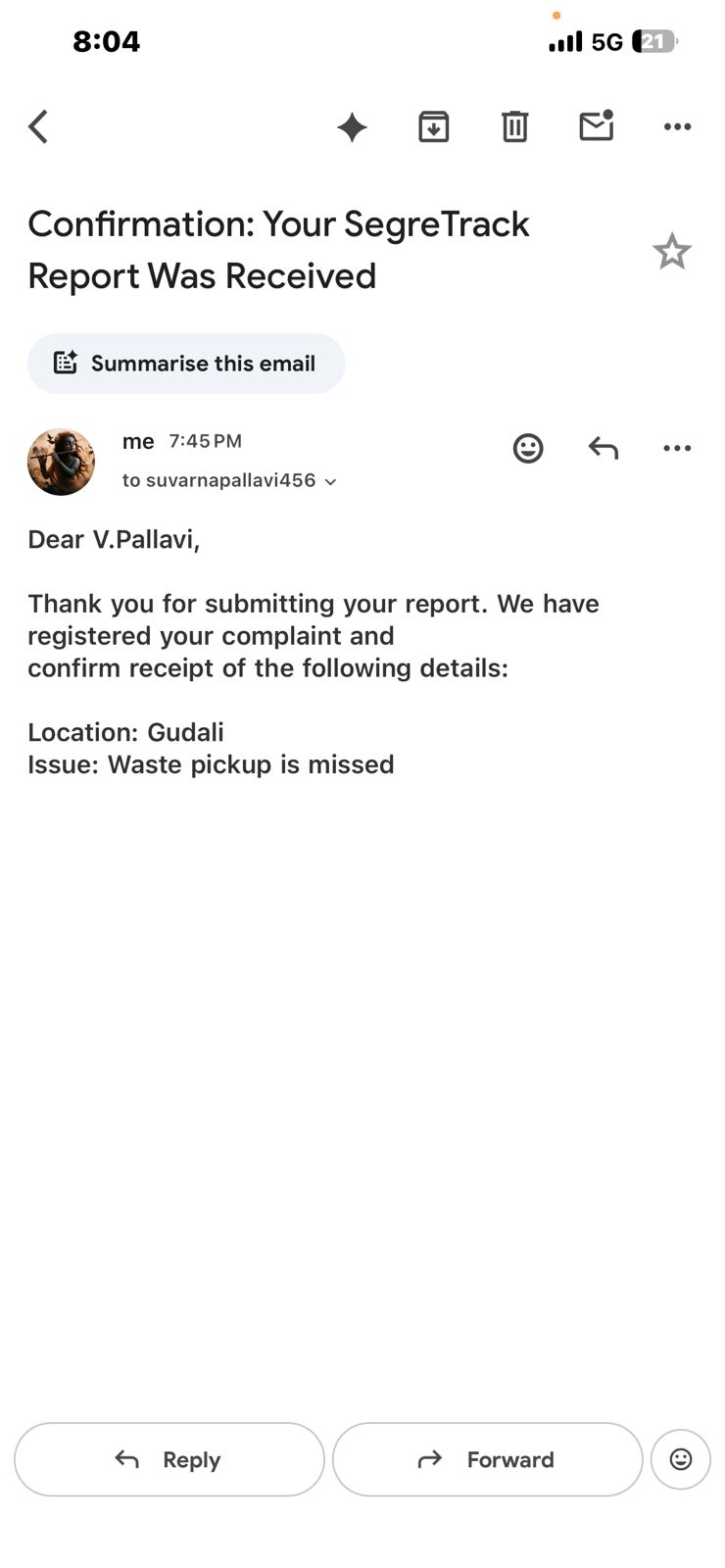
If you provide an email, you will receive a confirmation message acknowledging the report and listing details.
How to use (User confirmation):
- Provide a valid email when submitting your report.
- Check your inbox and spam folders for the confirmation email.
- If you do not receive an email, check the execution log (admins) or re-submit ensuring the email field is valid.